
Menu
How to Install an APK on Android: A Step-by-Step Guide
Welcome to our comprehensive guide on how to install an APK files on your Android device. This guide will walk you through the process step-by-step, complete with screenshots to make the installation process as straightforward as possible.
What is an APK?
APK stands for Android Package Kit, and it is the file format used by the Android operating system to distribute and install mobile apps. If you download an app from outside the Google Play Store, you will typically receive it as an APK file.
Why Install APKs?
Installing APKs can be useful for:
✎ Accessing apps not available in your region.
✎ Installing versions of apps that are not yet available in the Play Store.
✎ Using apps that have been removed from the Play Store.
Steps to Install an APK on Android
Method 1
Before you can install an APK, you need to allow your device to install apps from unknown sources.
STEP 1: Enable Unknown Sources
✎ Open Settings: Locate and open the Settings app on your device.
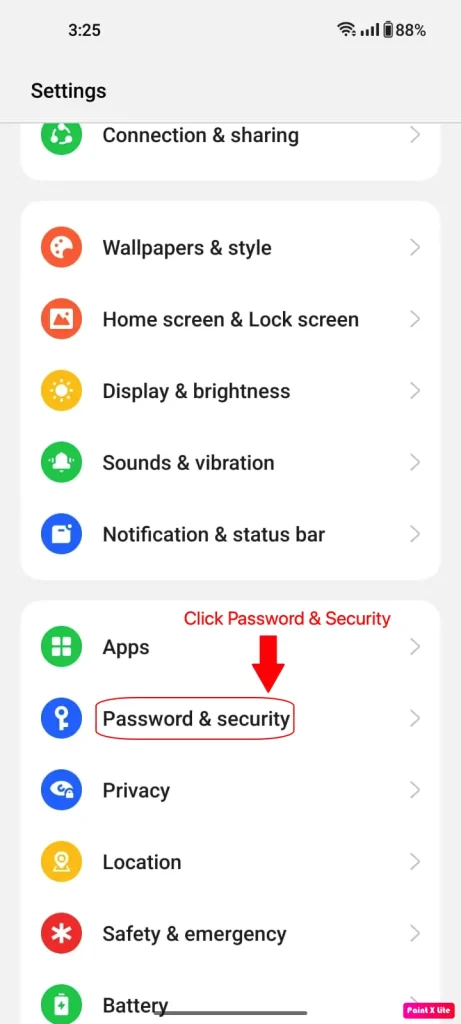
✎ STEP A (Password &Security): Scroll down and tap on “Password & Security,” “Privacy,” or just “Security” (the exact name may vary depending on your device). On my device running Android version 13.1+, it’s “Password and Security,” as shown in the screenshot below.
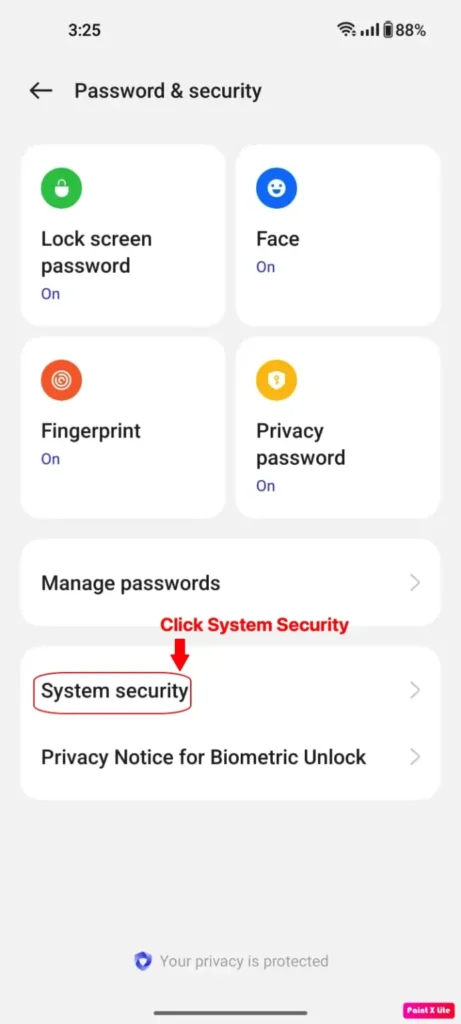
✎ STEP B: (System Security)Navigate to “System Security” and tap to open the options, as illustrated in the below STEP B screenshot. (The options might vary depending on your device.)
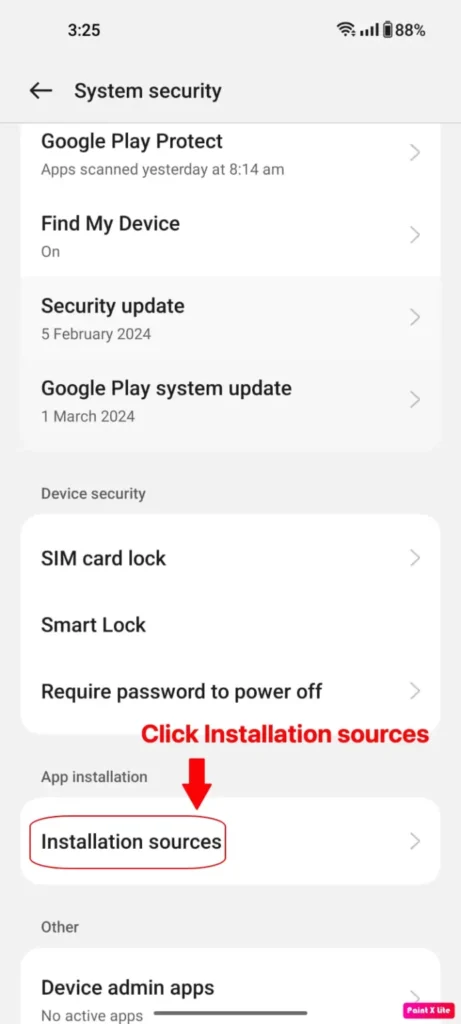
✎ STEP C: (Installation Source) In the opened window, find and tap “Installation Source.”
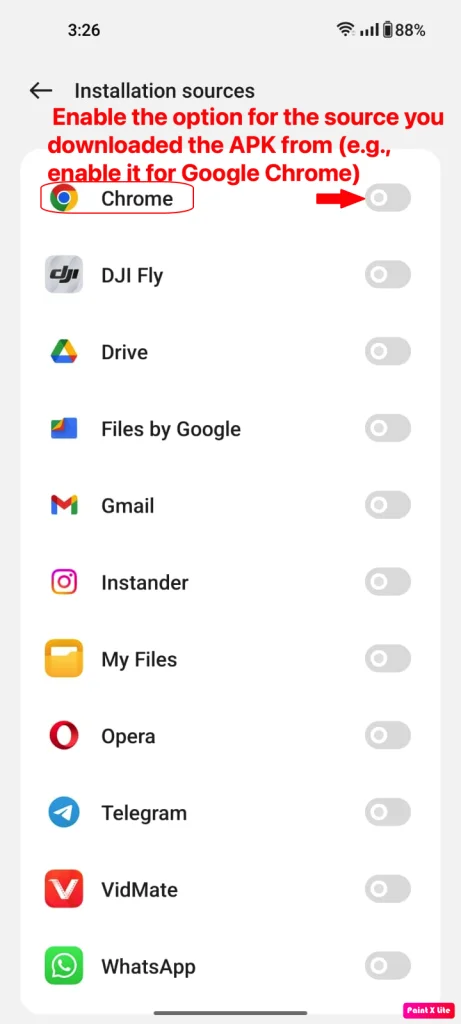
✎ STEP D: (Google Chrome) Search for the app you used to download the Instander Mod APK. I have used Google Chrome to download the official APK, so I will enable Google Chrome, as shown in the below STEP D screenshot.
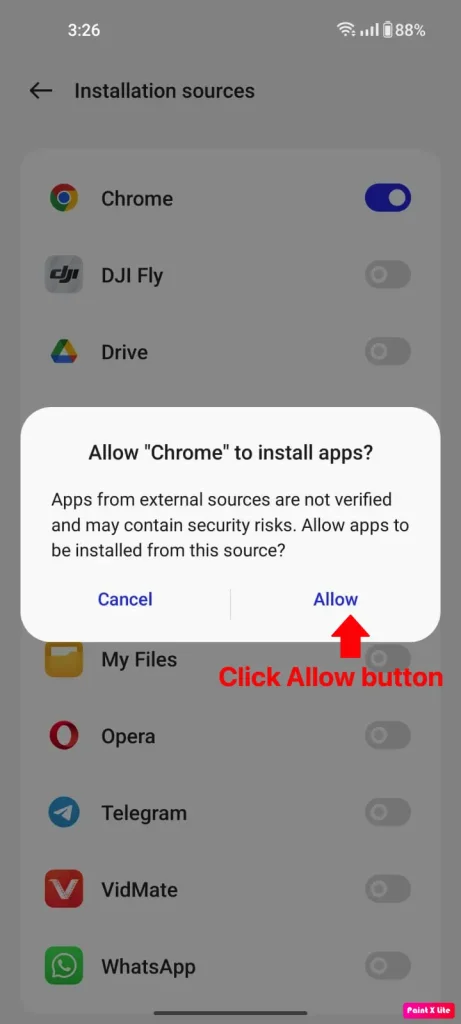
✎ STEP E:(Enable and Allow Chrome to Install APP) When you tap the Google Chrome icon to enable it, a pop-up will appear asking for permission to install apps from unknown sources. “Unknown sources” refer to sources other than the Google Play Store.
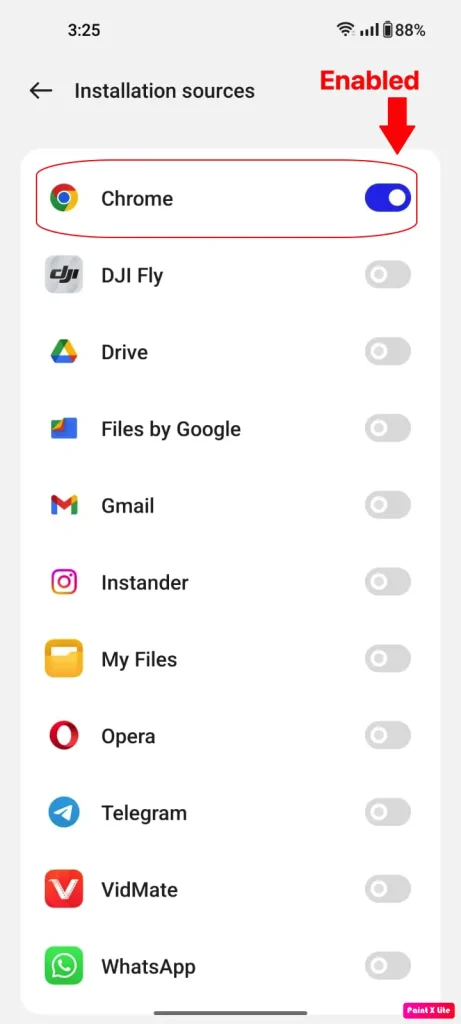
✎ STEP F: (Enabled Google Chrome) Now, with Google Chrome enabled as seen in below STEP F screenshot, you can install any APK downloaded using Google Chrome as your browser.
Step A
Step B
Step C
Step D
Step E
Step F
STEP 2: Download the apk
- Find a Trusted Source: Visit a trusted and official website where the APK is available for download.
- Download the APK: Tap the download button to start downloading the APK file.
STEP 3: Install the APK
- Locate the Downloaded APK: Once the download is complete, open your device’s file manager and navigate to the “Downloads” folder or the folder where the APK is saved.
- Start the Installation: Tap on the APK file to start the installation process.
- Confirm Installation: You may be prompted to confirm that you want to install the app. Tap “Install”.
- Wait for Installation to Complete: The installation process will take a few moments. Once it’s done, you can tap “Open” to launch the app or “Done” to exit the installer.
Method 2
Before you that you allow to install APK from unknown sources, you simply need to download APK from trusted source first.
STEP 2: Download the APK
- Find a Trusted Source: Visit instander official website to download the APK. Click the download button to start downloading the APK file.
Step 2: Install the APK
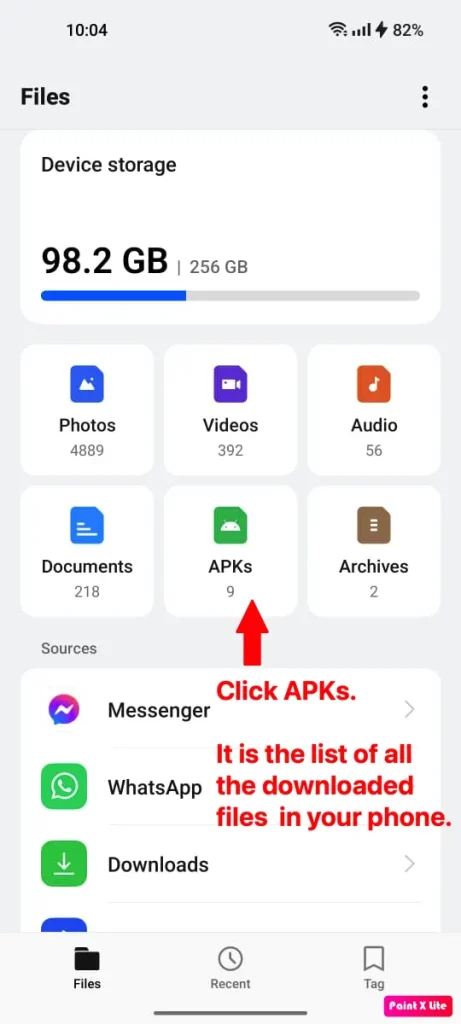
✎ STEP A: (Locate the Downloaded APK) Once the download is complete, open your device’s file manager and navigate to the “Downloads” folder. Alternatively, a window may categorize downloaded files. Navigate to the APKs folder, as shown in the screenshot below (STEP A) .
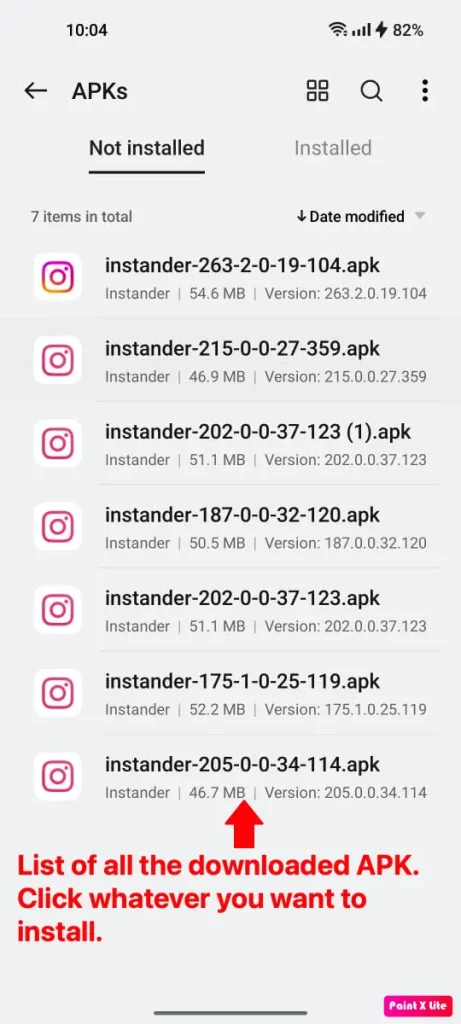
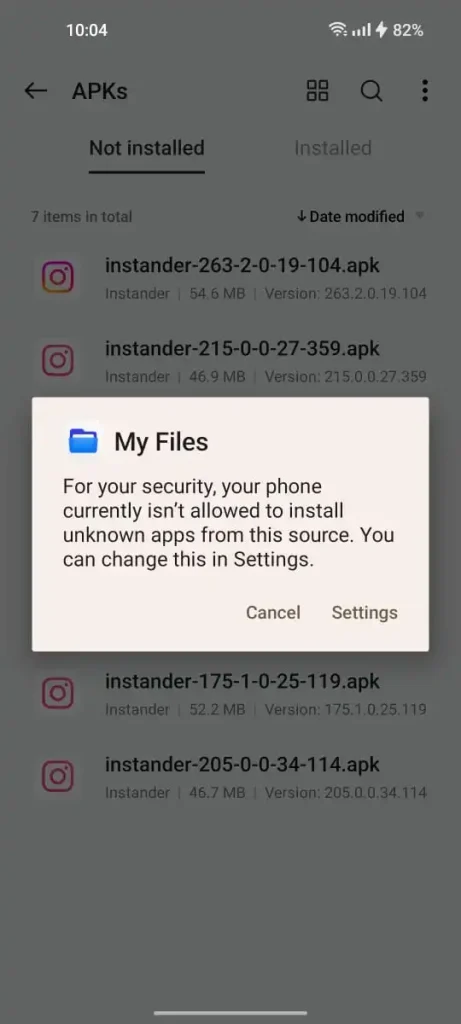
✎ STEP B:(Start the Installation) In the APKs folder, you will see a list of all downloaded APKs. Tap on the Instander APK file to start the installation process, as depicted in the screenshot below (STEP B).
✎ STEP C:(Settings) If you haven’t already allowed app installations from unknown sources, a pop-up will appear with instructions. Click on “Settings” to proceed.
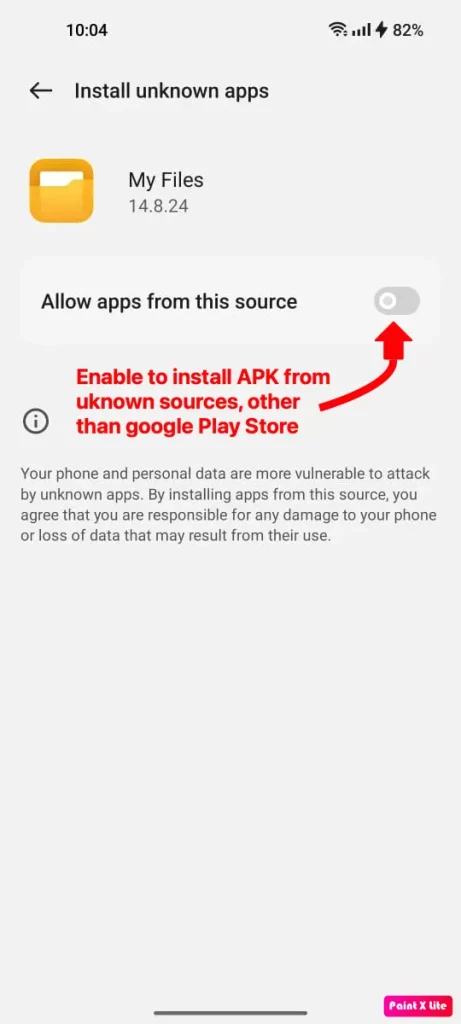
✎ STEP D:(Allow apps from this source) Enable the option to allow apps from this source, as shown in the screenshot below (STEP 4).
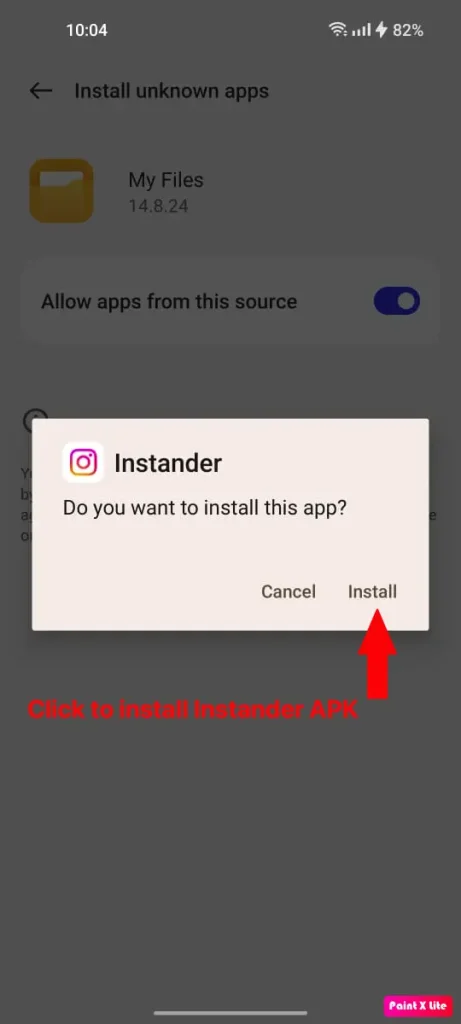
✎ STEP E: (Install App) A pop-up will appear prompting you to install the app. Click “Install” and wait for the app to be installed, as illustrated in the screenshot below (STEP 5).
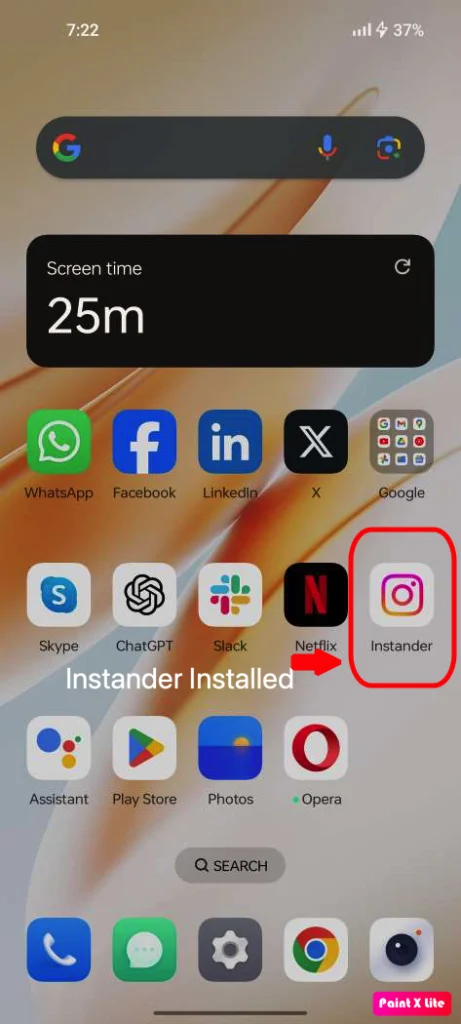
✎ STEP F:(Instander:)Once installed, you will see a confirmation that the Instander APK is installed, as shown in the screenshot below (STEP 6).
By following these steps, you can successfully download and install the Instander APK on your device.
Step A
Step B
Step C
Step D
Step E
Step F
Troubleshooting Common Issues
✎ Installation Blocked: Ensure “Unknown sources” is enabled in your security settings.
✎ Corrupted APK: Check android version of your device and download Instander version according to your android version. Sometimes, your device doesn’t support the Instander latest version due to your device android old version.
✎ Insufficient Storage: Make sure your device has enough storage space for the app.
Conclusion
Installing an APK on your Android device can give you access to a wider range of apps and the latest features. By following this guide, you can easily and safely install APK files on your device. Always ensure you download APKs from reputable sources to avoid security risks.
Happy app exploring!
FAQ
Far far away, behind the word mountains, far from the countries Vokalia and Consonantia, there live the blind texts. Separated they live in Bookmarksgrove right at the coast
Far far away, behind the word mountains, far from the countries Vokalia and Consonantia, there live the blind texts. Separated they live in Bookmarksgrove right at the coast
Far far away, behind the word mountains, far from the countries Vokalia and Consonantia, there live the blind texts. Separated they live in Bookmarksgrove right at the coast